 Posted by
 Reading time: 8-10 minutes

Microsoft 365 Copilot has and will revolutionize the way people work within the organization. But there are still some hurdles regarding data governance and -security. Time for a closer look.
I have been somewhat quiet on the AI and Copilot front. The main reasons for this was the enormous amount of (high quality) content created around this subject in the last couple of months. But I do want to add information on this topic – with the primary focus on data governance and data security.
This rise of AI proves that business processes can be improved by driving automation, improving customer experiences, and unlocking insights from data. From creating quick meeting recaps and document summaries, to revolutionizing the employee onboarding process using agents, enabling front-end workers to more quickly perform their tasks and also to empower security operators to quickly investigate and remediate incidents. These are just some examples. I could have asked Copilot to create some more 🙂
Reservations
When we focus on Microsoft 365 Copilot, most enterprises perceive heightened data security, data governance and responsible use risks. Copilot requires vast amounts of data, and with this comes the challenge of ensuring that data remains secure. As I mentioned in one of my earlier posts, I do have some
“déjà vu” when discussing these risks and issues. Especially around the subjects of enterprise search and Microsoft Delve. Both of these functions also exposed ungoverned/unprotected content to may people in the organization and also resulted in reactions in the line of “turn it off, don’t use it!”.
And, to be fair, AI can be scary. Let’s take a look at some of the risks involved:
- Over-sharing and/or insufficient access protection of documents, leading to unintended access, potential data loss and even insider threats;
- Data loss because of integration with Microsoft Bing or 3rd party applications;
- Privacy concerns (see the DPIA);
- AI hallucination and overreliance on the results (see the DPIA again);
- Prompt Injection and Jailbraking.
Most of these issues can be addressed.
“Do not use Microsoft 36 Copilot”
As a side-note; The Dutch organization “Surf”, in conjunction with the Privacy Company issued a Data Privacy Impact Analysis (DPIA) where they argued that educational institutions should stop with Microsoft 365 Copilot altogether. The most prominent reasons (high risk) involved diagnostic data, telemetry data, Responsible AI (RAI) and AI hallucinations. Or, in somewhat more detail, these risks:
- Inability to exercise data subject access rights to Diagnostic Data;
- Significant economic or social disadvantage and loss of control due to use of generated texts;
- Loss of control through lack of transparency “Required Service Data” including Telemetry Events from Webapp clients;
- Reidentification of pseudony-mised data through unknown retention periods of Required Service Data (including both Content and Diagnostic Data).
Microsoft and the Dutch privacy guardians have had this discussion on telemetry/diagnostic data before and I’m sure these issues will be sorted out. But that’s the level of reaction I’m willing to provide at this moment. I do have my thoughts on the subject, but will keep these private (for now).
How to address these concerns?
Some of the concerns associated with Microsoft 365 Copilot are hard to address by me. The reason is simple: I don’t have the required knowledge to provide a coherent answer (for example: telemetry). But the last couple of months I did spend some time looking at the different options Microsoft does provide. And in this article I want to describe these is more detail. More information can be found here: https://learn.microsoft.com/en-us/copilot/microsoft-365/microsoft-365-copilot-privacy
In my view, the way organizations should look at the implementation of Microsoft 365 Copilot, is to ensure that the models behind the AI tool only use content that is relevant, that data security is maintained and that Copilot is used ethically. Microsoft herself used this infographic for this.

From: Prepare your data for Microsoft Copilot with new tools – Ignite 2024
I must admit that I do think there is something missing in this picture. Whilst the focus is on data protection (which is great), it does not mention the relevance of the content. In short: make sure that you start using Microsoft Purview retention labels and retention policies, Microsoft 365 Archive or any other solution to clear out your data estate (in line with regulatory requirements of course). Or at least make sure that any AI solution is able to use the most relevant content. But this article by Joanne Klein is a must-read: https://joannecklein.com/2025/01/15/purview-retention-and-the-microsoft-copilot-blueprint/
Protecting sensitive data
An important note when using an AI solution like Microsoft 365 Copilot is that it will be able to retrieve any information you as the user can access already. This is information that you are entitled to access, but it can also be information that has been overshared and you probably should not have access to. But Microsoft 365 Copilot will happily show you all this information in seconds.
Get an insight
One of the first things to do is to get an insight into your data estate. So ask yourselves these questions; What type of information is stored in SharePoint Online and OneDrive, what is the relevance of the data for the organization, how sensitive is this data and who should be able to access it, and how are sensitivity labels utilized.
Microsoft 365 Copilot can use all content in your tenant and will (normally) not care when the data was last modified. If it is deemed relevant, it will be used. So it will be helpful to have an insight into less-current data. One option I normally use to get these insight is to use content search to search for documents (Office, PDF, others) that where last modified say five years ago and do not have a retention label (“ComplianceTag”) applied. I also use the same function to look for document that have legacy filetypes (doc, ppt, xls) – as this might indicate older content as well.
When you have identified this content, there are lots of ways to handle this. And for this I remind you of the link I shared above. But my (short) take on this: Use retention options to remove stale data. Move data to Microsoft 365 archive. Move the data to a SharePoint Online library and remove this library from the index. Or (mis)use sensitivity labels with the setting to disallow analysis services (see below) and label the content using auto-labeling.
Oversharing is an important issue as well. As Microsoft 365 Copilot can access any information you have (been granted) access to, mistakes are bound to happen. I can still recall the situation in a highly regulated enterprise where Fast Enterprise Search was implemented. This was intended to provide a holistic search experiences across many content location, but with adherence to the permissions for this content. Because of a misconfiguration of these permissions, more content was surfaced than permitted. Nobody was aware of this, but “search” made this plain. And these things might happen again with Microsoft Copilot.
These are some of the risks:
- Sharing files/folders with everyone in your organization, instead of specific people;
- Using unique permissions on a document library (breaking inheritance);
- Sharing a SharePoint Online site with “Everyone” in the organisation;
- No using the “Private” option in Microsoft Teams;
- Not classifying (and protecting) content using sensitivity labels;
- Not implementing data loss prevention.
Most of these risks occur when your data governance and data security is less mature and needs to be improved. And here Microsoft does offer many options.
SharePoint Advanced Management
Let’s start with this component – which (by the way) is now licensed with Microsoft 365 Copilot. Microsoft is working on and/or already release more data access governance reports. Two examples of these are an overview of sites including all the type of access links. And an overview of sites that contain the “share with anyone within the organization” links.
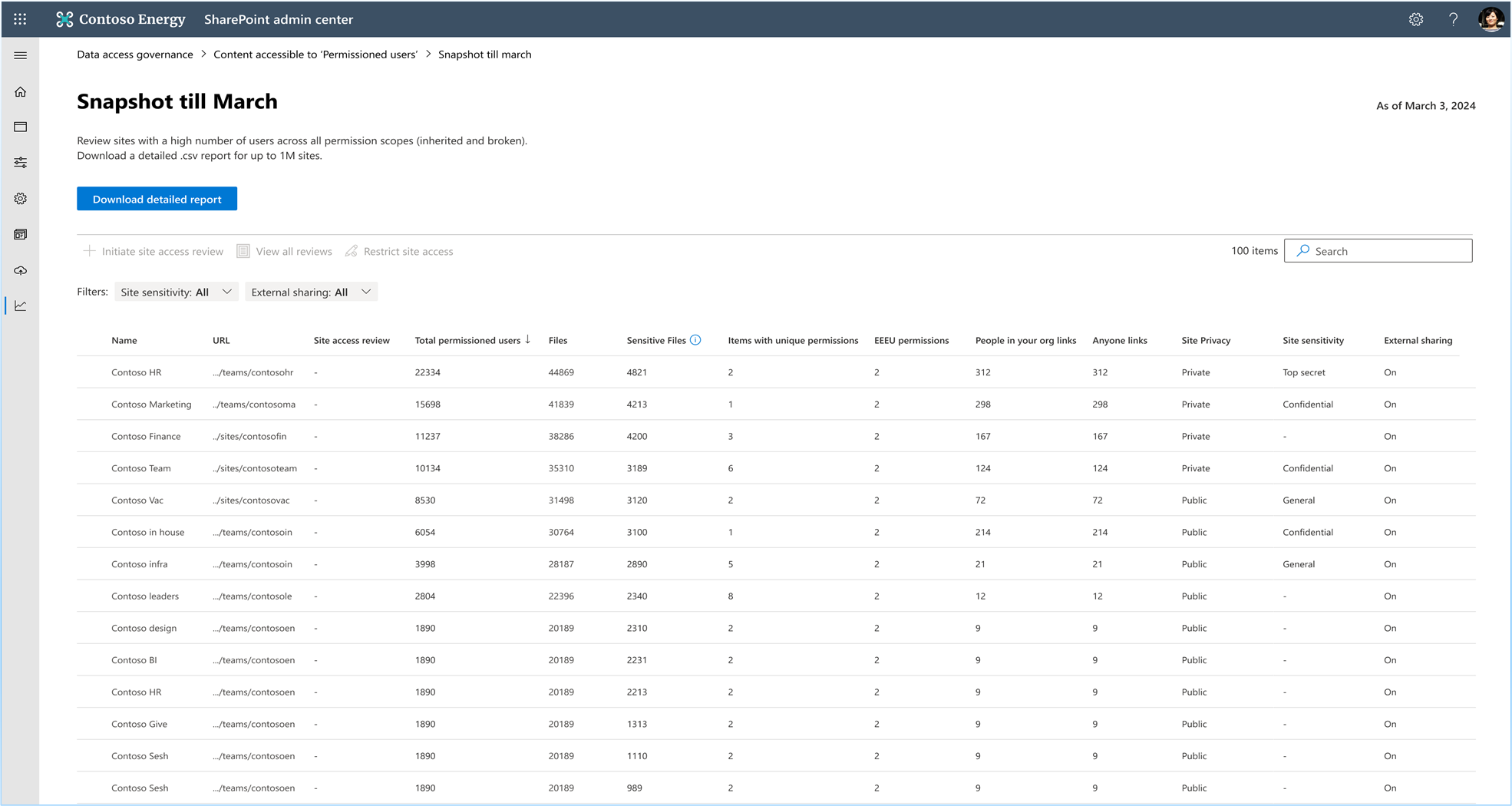
From: Prepare your data for Microsoft Copilot with new tools – Ignite 2024
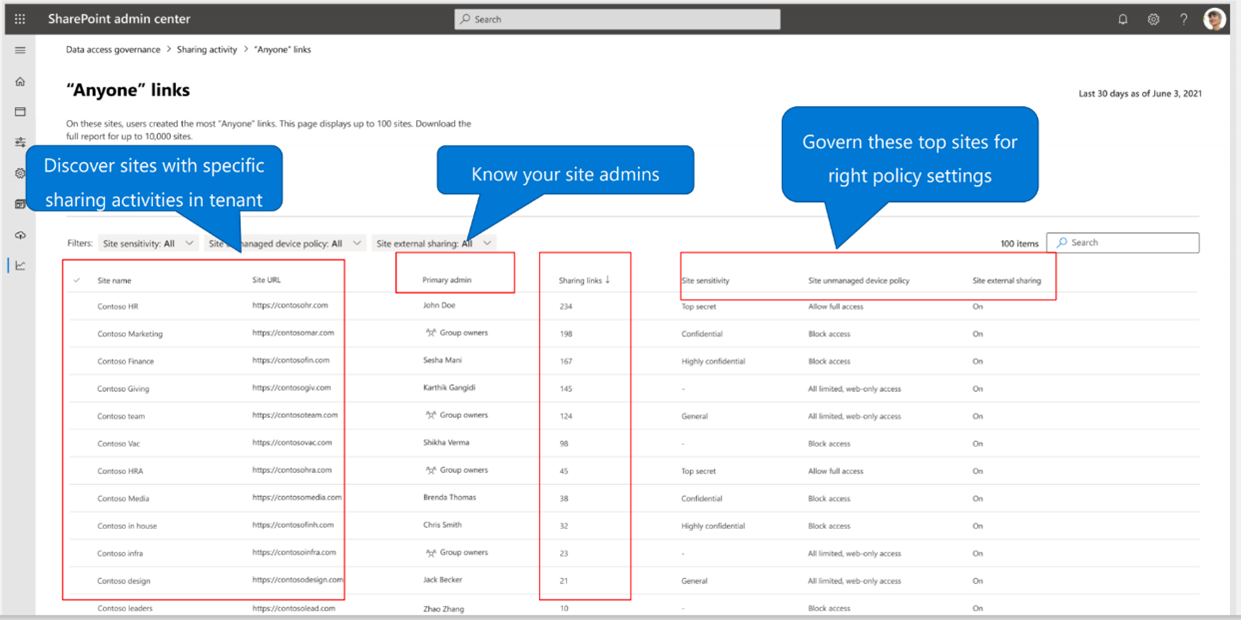
From: https://learn.microsoft.com/en-us/sharepoint/data-access-governance-reports
These overviews are a great starting point for assessing the potential risks to you content, based on the sharing of information. Another great starting-point, and one that has overlap with SharePoint Advanced Management, is the Data Security Posture Management for AI (DSPM for AI) module. You might know this platform as the “AI Hub”.
DSPM for AI
DSPM for AI does more than provide insights (more on this in the Start protecting section below). But a new (preview) function is called Data assessments. And these assessments provide you with an overview of sensitivity labels and sharing links within the organization. Like I mentioned earlier, these dashboards do have a lot in common with SharePoint Advanced Management.
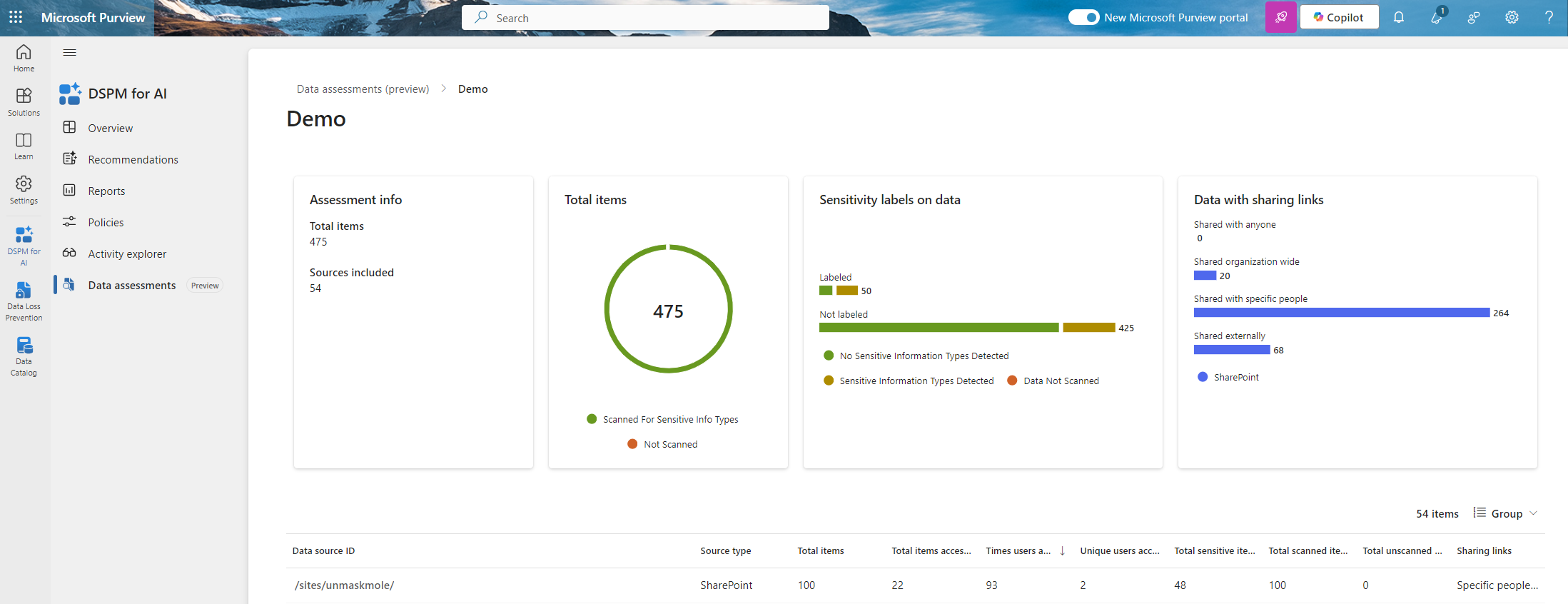
But there are some differences as well. And these have to do with the broader aspect of DSPM for AI. This platform takes a holistic approach to AI within the organization. In addition to the dashboards above, you can also create insights into 3rd party Gen-AI sites and the way Microsoft 365 Copilot is used ethically.
To be fair; the platforms behind the latter two functions are Microsoft Purview Endpoint DLP, Microsoft Defender for Cloud Apps and Microsoft Purview Communication Compliance. More on this in the next section.
Another level of insights in provided by Microsoft Defender for Cloud Apps. In the cloud app catalog (and also the cloud discovery) you get an overview of (the use of) generative AI apps and the ability to control the use of these apps and even block them.

Start protecting
Now that we have an overview of sensitive content and the way this is shared within the organization, we can look at protective measures for Microsoft 365 Copilot and other generative AI environment. If you want an head-start on this, start using the build-in policies of DSPM for AI. These basically create Endpoint DLP policies (in audit mode first) to check for AI interactions with public generative AI environments (Service domain and browser activities).
Endpoint DLP
It does so by create a DLP policies that does the following:
- Check for all sensitive information types;
- Check for interactions with LLM sites (for example, claude.ai)
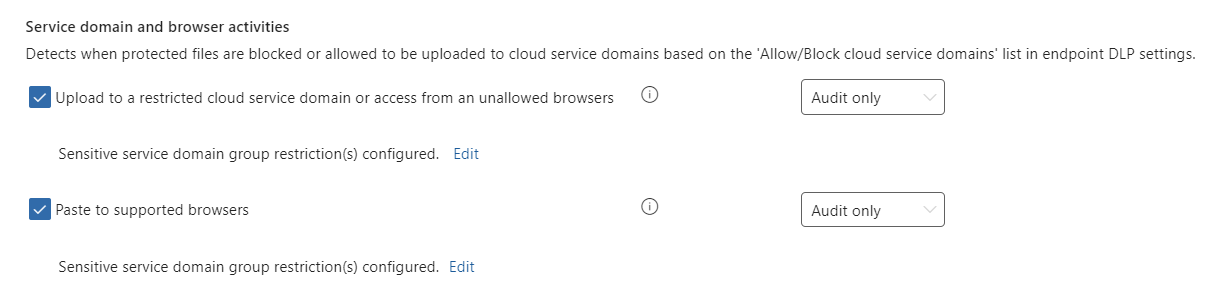
These LLM Sites are blacklisted in the settings for Endpoint DLP. You will see that this group is created when you create the policy.
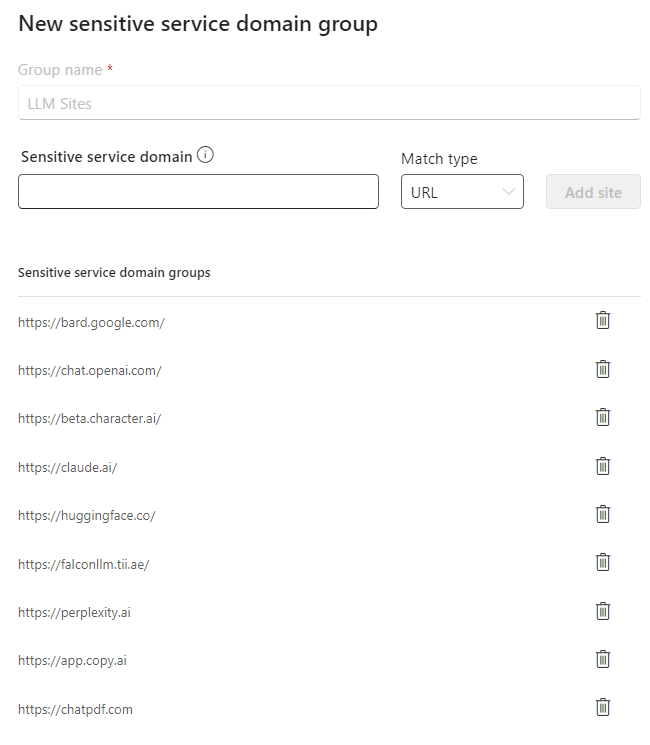
Start using sensitivity labels
This might be an open-door, but I’m willing to kick it in none-the-less. Sensitivity labels that provide encryption (by setting access permissions) will protect your content within Microsoft 365 Copilot. As Copilot functions based on your credentials, it will not be able to process or show documents that you cannot access. For example, this Word document that has a sensitivity label applied.
You can even (E5) apply labels by default in SharePoint Online document libaries and/or use auto-labeling for more workloads.
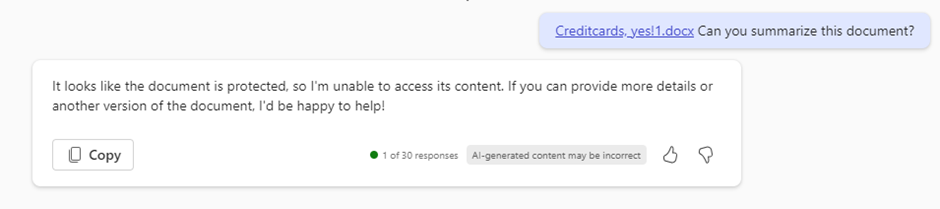
Copilot DLP
This function was announced at Microsoft Ignite 2024 and will allow you to set specific DLP rules for content that has a sensitivity label applied. If so, you can block this from being processed by Microsoft 365 Copilot.
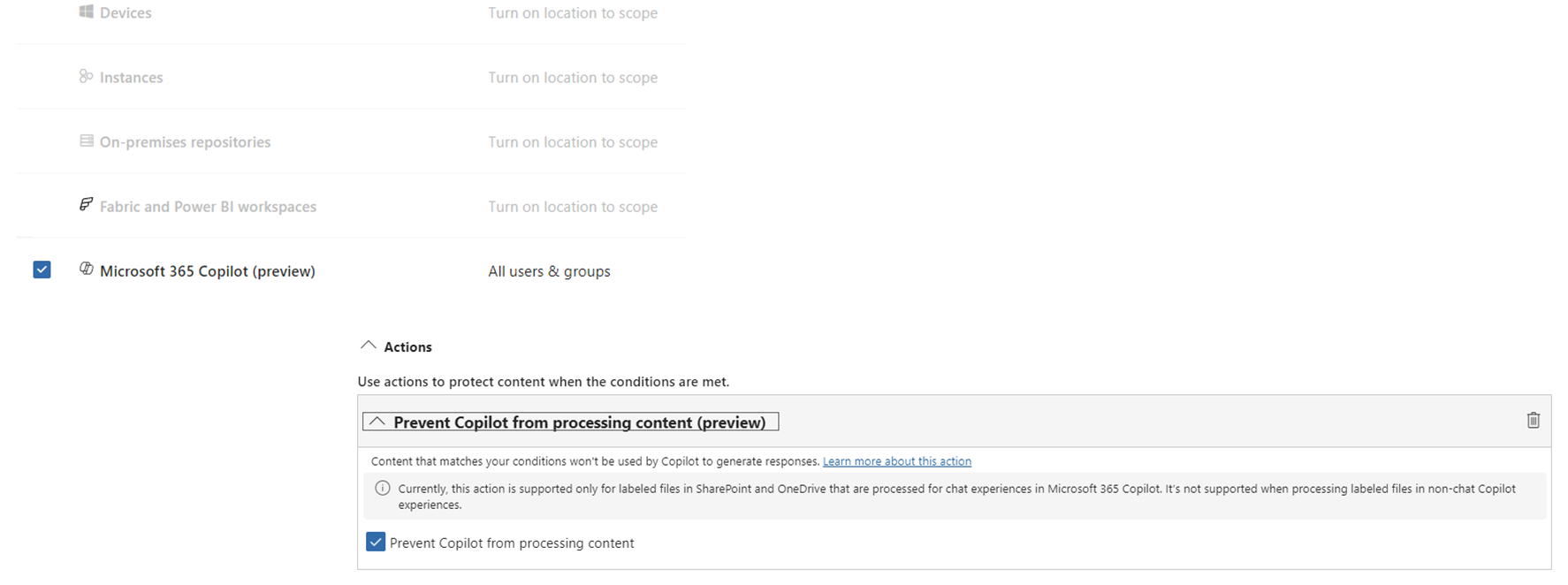
Note that these policies only cover documents in SharePoint Online and OneDrive and is not (fully) implemented in Word, Excel or PowerPoint. It will interact with documents from Microsoft 365 Copilot Business Chat and stop any interactions from this chat.
The upside of this is, that we can now combine sensitivity labels, DLP and Microsoft 365 Copilot. Although there still is another option to create this combination. And this is related to the settings of a sensitivity label.
Block content analysis
By using the advanced settings of a sensitivity label, you can excluded labeled documents from being used by Microsoft 365 Copilot. Note: this is not the same as the Copy and extract permission in the label. By removing that permission, you do not remove the document from the Copilot scope. You only remove the option to recreate documents based on the labeled content.
Blocking the content analysis will accomplish this. But it does have side-effects; the labeled content will not appear in search results and will also not be effected by DLP pop-up notifications, for example. Because of this, I like the specific DLP rules a lot more. But if you want to use this function, use this (Ippssession) PowerShell cmdlet:
Set-Label -Identity "<label>" -AdvancedSettings @{BlockContentAnalysisServices="True"}Block anyone
Another great way to protect your content is related to the problem of oversharing. Microsoft introduced a new DLP action some time ago. And this one is aimed at retroactively restricting access to content that has been “Shared with anyone”. As the “Anyone” link is basically a way to share information anonymously from your tenant, then this is a must-have DLP action for specific sensitivity. If you have this option enabled that is. Even regardless of Microsoft 365 Copilot.
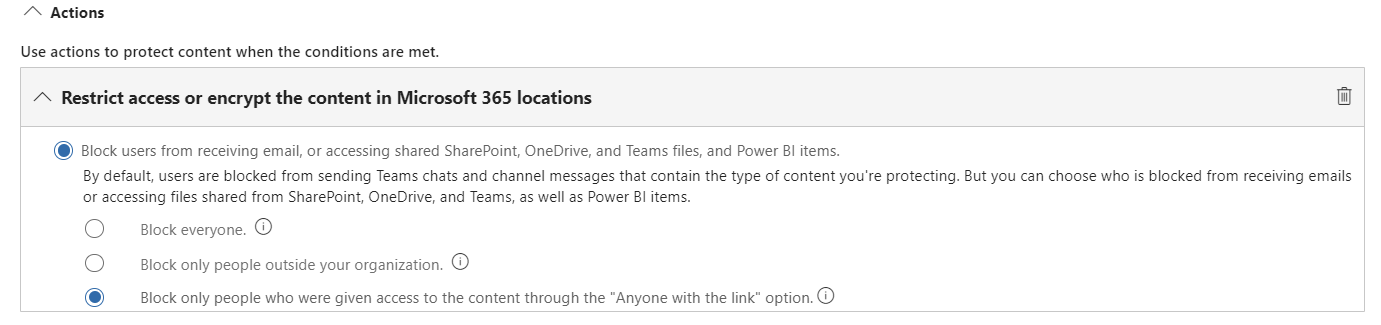
Block access to SharePoint Online sites/document libraries
Other blocking actions can be set for SharePoint Online sites and libraries. The latter is a more “vintage” way to disallow content from being shown in search results. It can still be found in the advanced library settings.
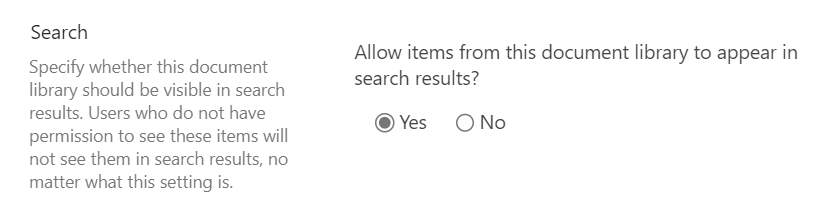
The other option is to only allow specific SharePoint Online sites to be part of the volume that Microsoft 365 Copilot has access to. Note: this is a form of whitelisting. You can enable a maximum of 100 sites that are part of Copilot. All other sites are not. So be careful! You use the (SharePoint Online) PowerShell cmdlet for this:
Set-SPOTenantRestrictedSearchMode -Mode EnabledBe responsible/ethical
Microsoft 365 Copilot and the underlying OpenAI foundation has several Responsible AI (RAI) models to safeguard against malicious use of the platform. Using DSPM for AI, you can create additional rules to monitor and control the interactions with Microsoft 365 Copilot.

As you might expect, DSPM for AI uses another Purview component for this. And that is the Communication Compliance function. This function has the ability to look into these Copilot interactions and create alerts to be followed-up.
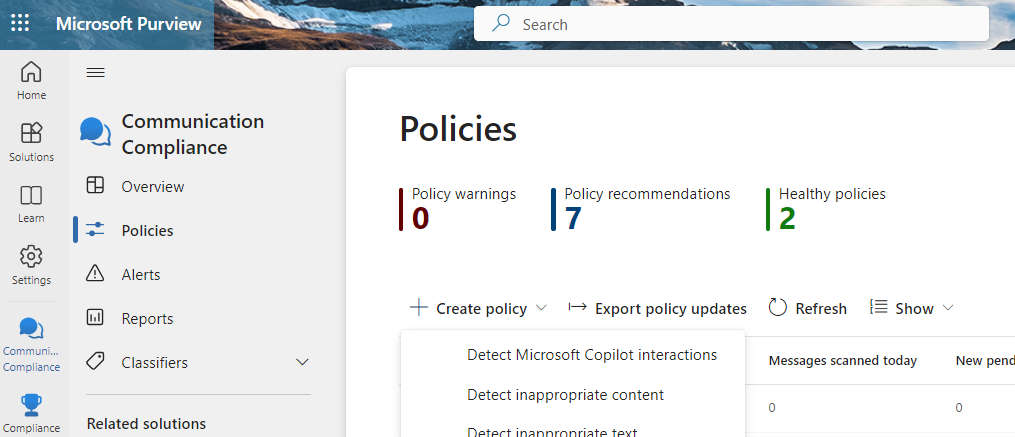
You can set these policies up yourselves as-well. The policy is scoped to specific users (or all users) and is configured to use trainable classifiers and/or other conditions to look for inside of a Copilot interaction. The standard policy contains these two (English) trainable classifiers by default;
- Prompt shields: Detects adversarial user input attacks such as user prompt injection attacks (jailbreak). User prompt injection attacks will deliberately exploit system vulnerabilities to elicit unauthorized behavior from the LLM.
- Protect materials: Detects known text content that may be protected under copyright or branding laws. Detecting the display of protected material in generative AI responses ensures compliance with intellectual property laws and maintains content originality
From: https://learn.microsoft.com/en-us/purview/trainable-classifiers-definitions#prompt-shields
Microsoft 365 Copilot has already revolutionize the way we work and can interact with information. I do understand the hesitations for some enterprises when we talk about data governance and data security. But by using the correct approach and (renewed) attention to data security, these hesitations can be mitigated. My personal opinion on this is that most enterprises should or could have done so some time ago. But better late then never 🙂
If you want the read more in this subject, please go to this site:https://learn.microsoft.com/en-us/copilot/microsoft-365/microsoft-365-copilot-privacy
 Information security and compliance