 Posted by
 Reading time: 4 minutes

Let’s take a closer look at a new public preview function: dynamic watermarking documents using sensitivity labels in Microsoft 365.
Content marking has been a feature of Microsoft Purview Information Protection even when it was still known as Azure Information Protection. It allows you to add a watermark, header and/or footer to an Office document, Outlook email messages, and meeting invites. Although watermarks are limited to documents.
To set-up these content markings, you either go to the Microsoft Purview portal and edit the specific sensitivity label. You can also accomplish this using PowerShell. In most cases you proably will apply the same (static) text to this marking.
Using variables
Azure Information Protection and now Microsoft Purview Information Protection already offered a form of dynamic marking, using variables. This function does require either the Office Online apps or the Microsoft 365 Apps from the channels 2010+ or 2102+.
Using these apps, you can add dynamic information to the marking. You will need to add these variables:
- Label name: ${Item.Label}
- Filename or email subject: ${Item.Name}
- User applying the label: ${User.Name}
- User’s UPN: ${User.PrincipleName}
- Local timezone, date and time of labeling: ${Event.DateTime}
These variables work for any Office document that will be labeled. But as you might notice, there is no variable indicating the person that has (last) opened the document. And this can be very useful in cases where information is leaked outside of the organization. And this is where the new dynamic watermarking comes in.
Dynamic watermarking
This new function is now rolling out in private preview and I noticed this becoming available in my tenant. So let’s take a look. This function for watermarking (no header/footer function) uses the UPN of the person which opened the document. It’s therefore really dynamic. The function adds this UPN to all pages of the document and it will be hard to miss when printing or storing the document in an unregulated location.
One big difference between the static watermark and this dynamic version is the use of access control (or “encryption”). Dynamic watermarking requires you to setup access control for the label. After which, this setting takes precedence over any configured static watermark.
Also, if the Microsoft 365 Apps do not support dynamic watermarking, than the document will not open at-all. I tested the functionality with the 2409 build of the Microsoft 365 apps and Office Online and both worked great. Below is a document in Office Online and the Microsoft 365 Word app.


The setup
If your tenant has been onboarded for this feature, you can enable the settings. You can either use PowerShell (see below) or use the Purview portal for this.

By the way. It would appear that UPN is just the starting-point for this functionality. If you look closer at the Set-Label PowerShell cmdlet, you will see that it includes the variable -DynamicWatermarkDisplay. At this moment, this variable only supports the ${Consumer.PrincipalName} value. But perhaps, we might see other values like the time/date of opening the document.

Using the GUI
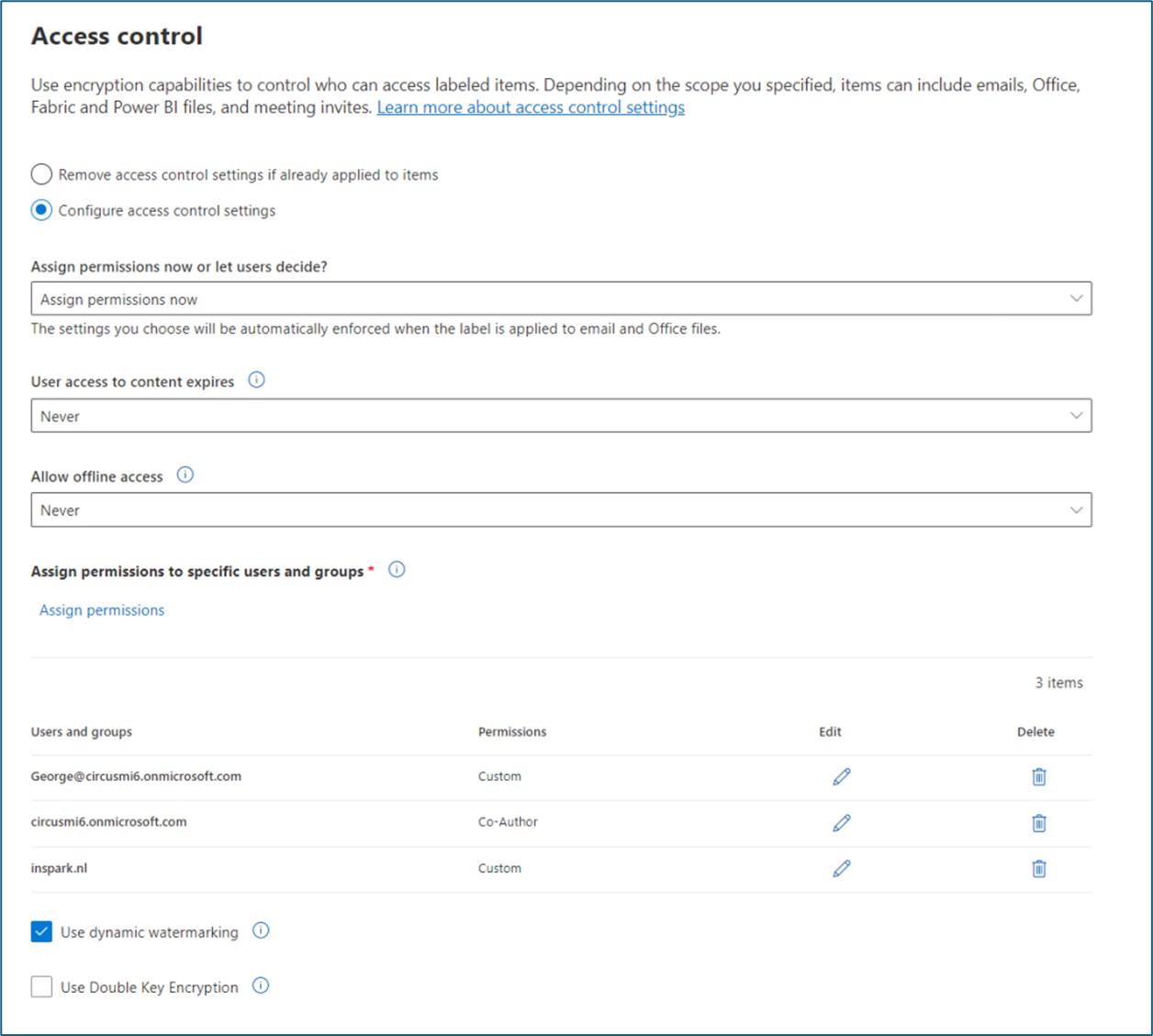
As encryption is required for this marking, you will find the (very simple) option in the Access control part of the sensitivity label configuration.
Removing the setting
You can remove the watermark by either selecting a different label (if you have these permissions on the document) or unchecking the box in the label settings. In my case, it did take some time for the label to revert back to the static watermark which I also configured on the label. But it will remove the dynamic watermark.
By the way, to remove encryption from a document using labels, any user will need the Export permission or Full Control role. And the Export permission is only part of the Full Control role. I will write a short blog on these permissions soon.


The same goes for documents with a specific label where dynamic watermarking is added afterwords. It takes some time, but in the end the watermark becomes visable.
What if you have both options enabled? When, simply, you will see both watermarks. As shown here.

Want to know more?
If you want to know more, please go to this Microsoft Learn page: https://techcommunity.microsoft.com/t5/security-compliance-and-identity/preview-dynamic-watermarking-for-sensitivity-labels-in-word/ba-p/4185842
 Information security and compliance