 Posted by
 Reading time: 6 minutes
Sensitivity labels are configured in a specific hierarchy. In some posts, I tried to explain the importance of this. In this article, I want to expand some more.
Sensitivity label hierarchy
Any data classification scheme uses the concept of hierarchy to organize data based on its sensitivity and importance. This hierarchy helps in implementing security measures and controlling access according to the data’s classification level.
In some previous posts, I mentioned the need for this hierarchy. One reason is the interaction between container-based labels and item-based labels. And in this post, I want to expand this with one scenario. In this scenario, an admin changed the hierarchy by adding a sublabel to a label that has no sub-labels as yet. In effect: creating a parent label. The results of this scenario need to be addressed. So let’s take a look.
Sublabels
Many organizations start out with a flat data classification hierarchy, using only top-level labels. For example: Personal | General | Sensitive | Secret. But in the end, this will not be scalable enough for all use cases.
For example, you might have sensitive HR information and you need to apply specific access controls and visual markings. This will require a specific label. Instead of creating another top-level label, you will need to create this label inside of your current label hierarchy. For example: Sensitive\HR documentation. And you can use the portal to do so.
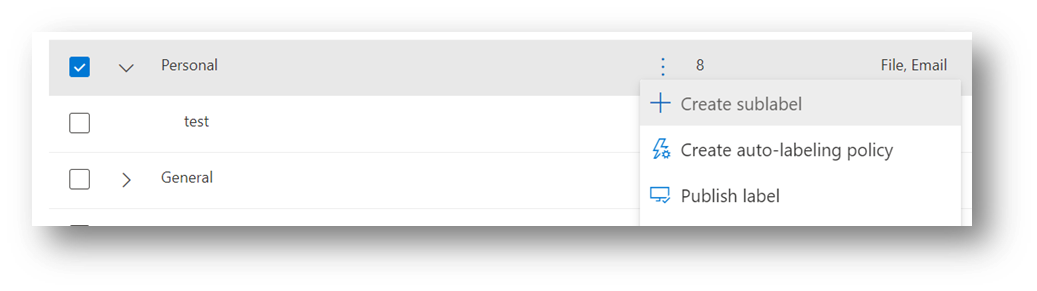
When you do, the top-level label becomes a so-called parent label and the new label is called a sublabel. My advice is to start out using sublabels directly. You can create these sublabels afterward, but there are some side effects. Especially when your users are already using the top-level labels.
When a sublabel is created afterwards
For this scenario, I have a Word document that has a sensitivity label applied. At this moment, it still is a top-level type label (Personal).

It has been decided to add a sublabel named Test to the label Personal and the label is added to the label policy. After this change has been propagated (it takes some time for a change to a label policy to take effect) you will notice this behavior.
SharePoint Online metadata
When you try to change the sensitivity from the metadata view of the document, you will notice that the current label is greyed out. More importantly: you cannot select any other label. You will need to open the document.
Document itself
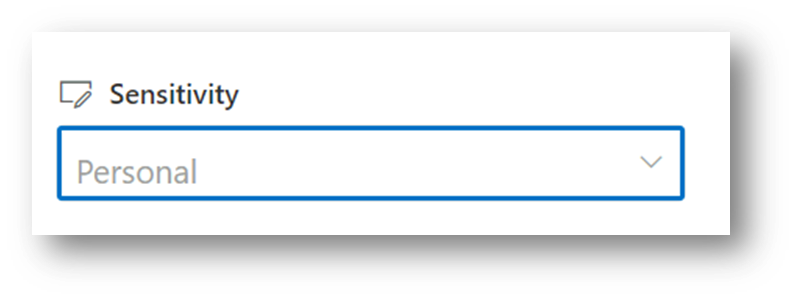
The current label will stay with the document, including any permissions configured for the label. It cannot be selected from the Sensitivity option. Instead, this option now displays the new Test label.
People might get confused by this. Especially when they are used to the labels and/or have been instructed how to use them labels. If one of these labels is no longer available, what to do?
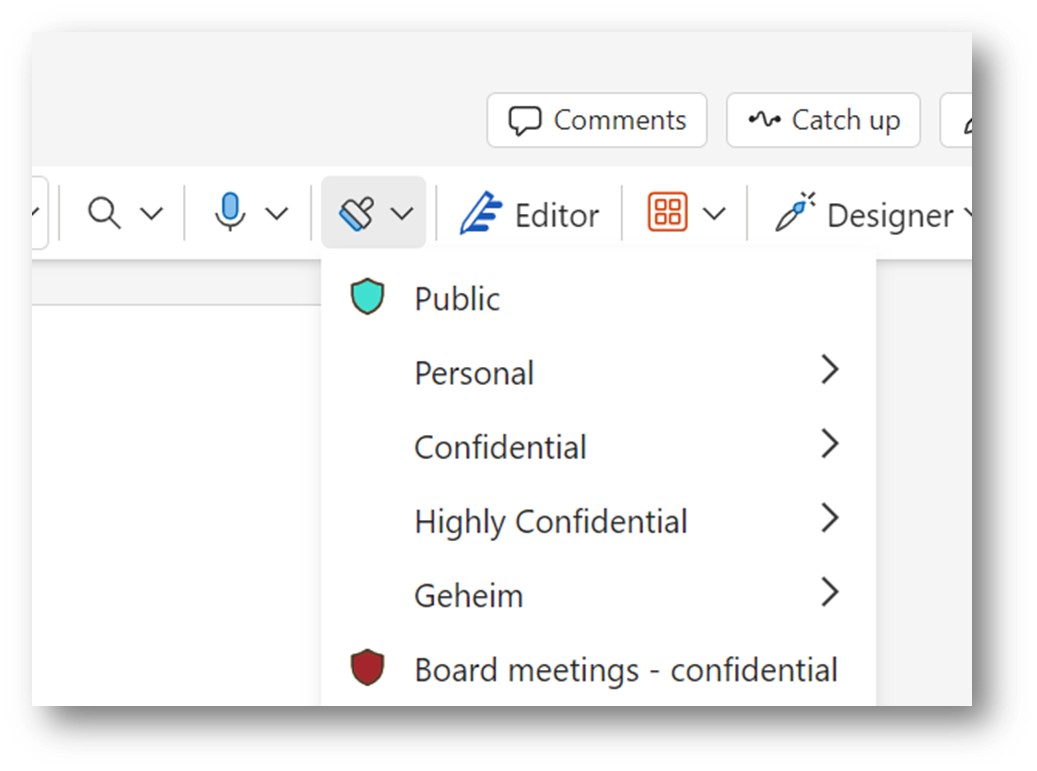
Another tip: don’t use multiple languages as displayed in the screenshot (English and Dutch). Set up information protection in multilingual mode, if needed 🙂
Document library settings
If you use a default label on the document library (when you have an E5 license), you will notice that the top-level label can no longer be selected. When the library already had this label applied, this will be restored to None.
So any document libraries within the organization using that label (now parent label) will not have a default sensitivity label.

Label policies – default label
The last scenario involves admins. What if we already had the top-level label set as a default label in the policy and a sublabel is added? This will break. Because you cannot set a parent label on an item, the default label will be set to None. You will start noticing this when you edit the policy – see below.
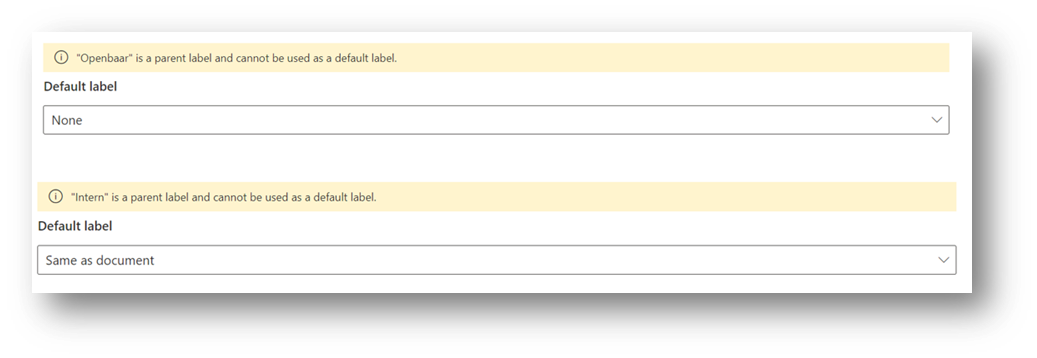
In the example above, I have two default label configurations (documents and emails) that both are configured for top-level labels (resp. Openbaar and Intern) that have been promoted to parent labels.
Let’s dive a bit deeper. What are the consequences for the users?
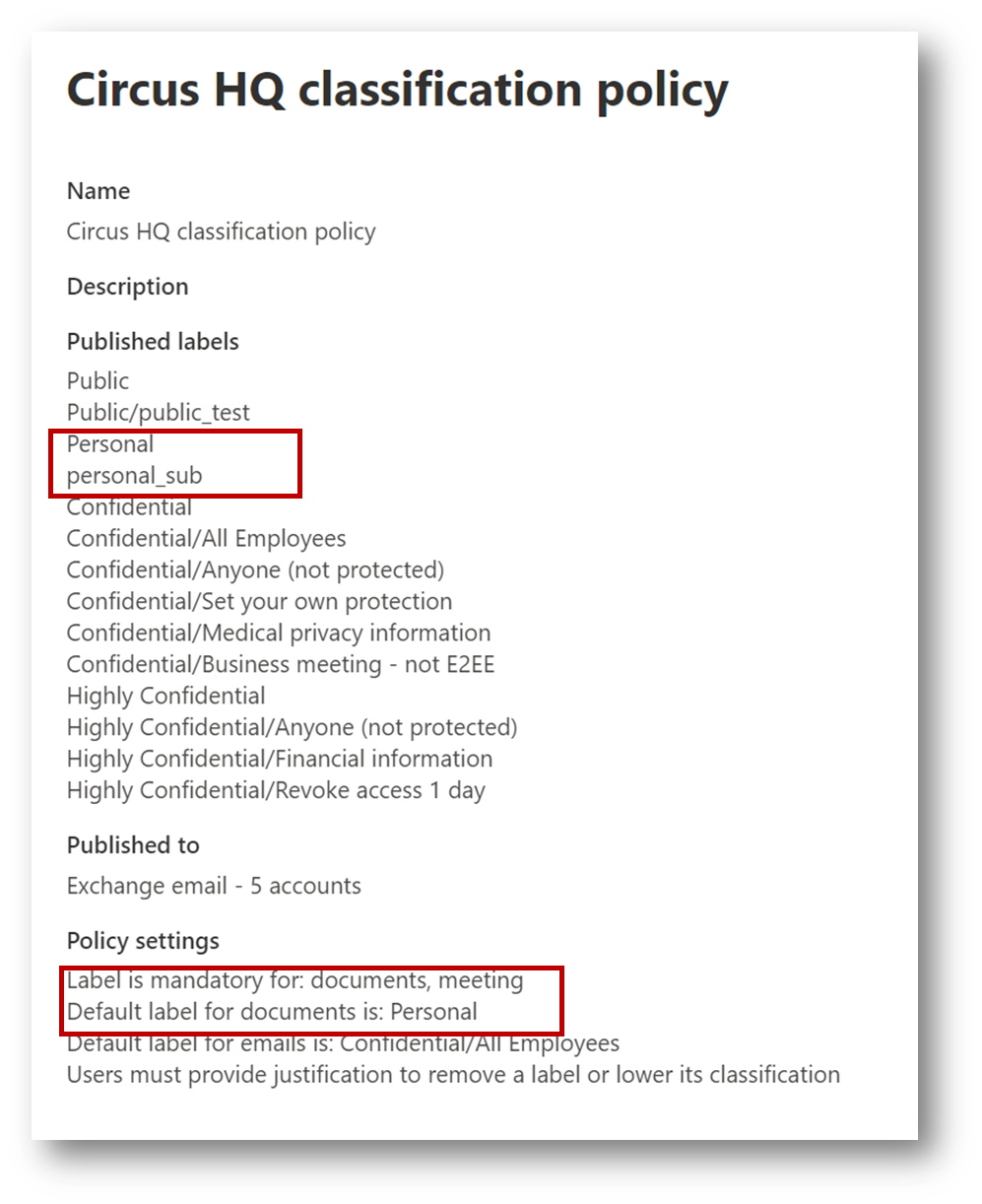
In this example (above), the policy is set to the label Personal, but a sublabel has been added called personal_sub. Before this change is effectuated, any new document will still be configured with the default label. And notice that setting a label is mandatory in this policy!

After the change has come into effect, the default label is removed from the policy. Any new document will not get the default label. Instead, you will see the new sublabel(s).
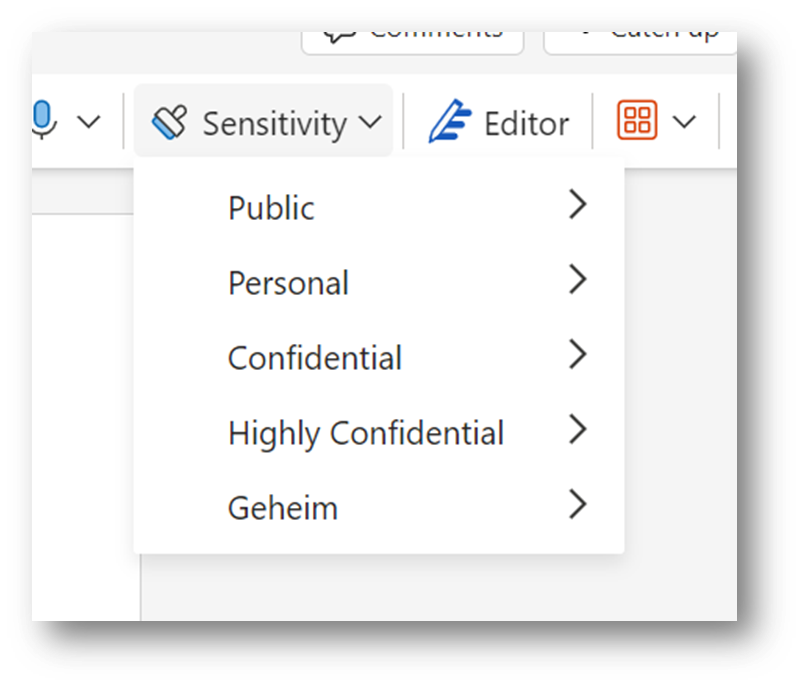
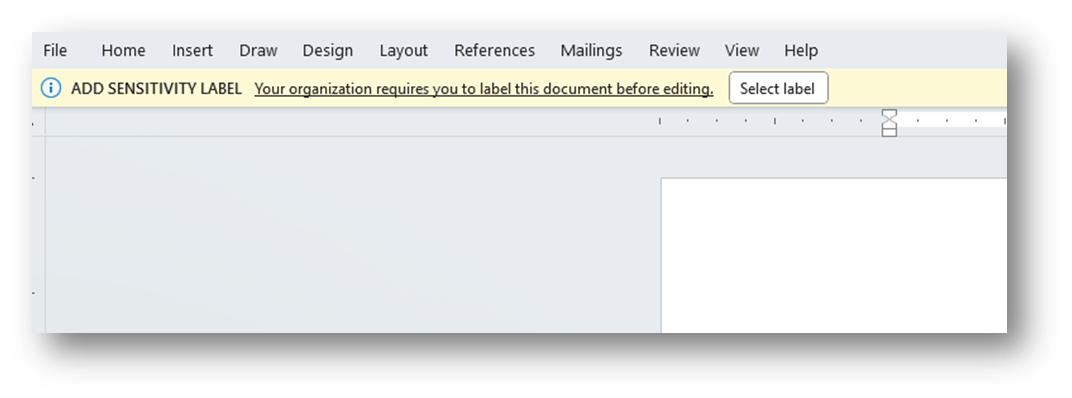
And now things start to get somewhat complicated. Because in Office Online, the setting for a mandatory label is not enforced. You can simply close the document and it will be saved, without a sensitivity label!

But when using the Microsoft 365 Apps, your users will be prompted to add a label. Remember: in this scenario and before the sublabel was added, they were used to having a default label applied. So this will become confusing and annoying.
What to do?
Don’t start adding sublabels to top-level labels in a production environment when people are already using the labels. The effects might not be very positive.
A lot of things will happen when you decide to add a sublabel to a top-level label that does not have any other sub-labels yet. This is my advice: be prepared for this scenario and start with a hierarchy of parent and sublabels. One way to go is to use Microsoft’s best practice for this. This hierarchy looks like this:
- Personal
- Public
- General
- Confidential
- Anyone (unrestricted)
- All employees
- Specific people
- Highly Confidential
- All employees
- Specific people
If you already have a hierarchy and need to add sublabels, make sure to create a representative sublabel for your users to switch to, when the parent label becomes unavailable. Inform your users!
Also, inform the site owners if you use the default label settings on document libraries. Inform the admins behind your provisioning solution that a specific label cannot be used anymore.
A lot of informing to do……
That is why I still advise you to be prepared and use the hierarchy (parent/sublabel) directly.
 Information security and compliance
One comment