 Posted by
 Reading time: 5 minutes

Is adaptive protection the way ahead when faced with the huge amounts of data and the inherent insider risks an organisation might face? Let’s take a look.
Data Loss Prevention
In one of my earlier posts (Microsoft 365 DLP – The (new) control pane?), I stated that data loss prevention might become the new control plane for guarding your information. Why new? Because, it is no longer relevant where information is stored, Microsoft 365 DLP will be able to check if specific interactions are allowed to take place. Especially endpoint DLP is very powerful in this regard. And Microsoft has just announced additional data leak prevention for web applications.
The current form of Microsoft Purview data loss prevention looks at both the information and actions related to this information. For example: sharing a sensitive document as an attachment to an email with an external party. The metadata (for example sensitivity) of the information is one of the key factors for a DLP policy to kick in.
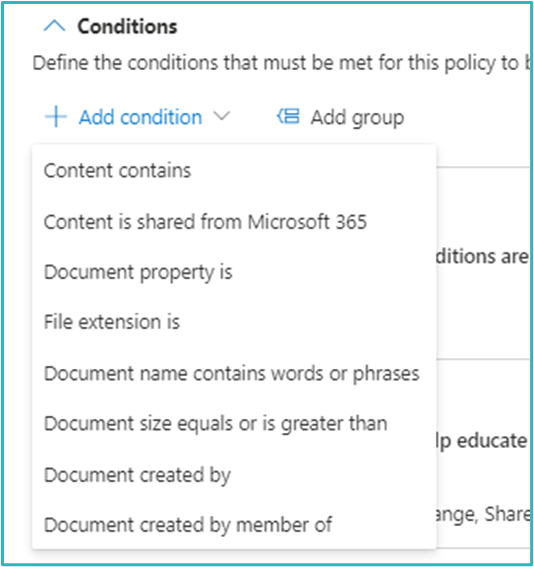
These conditions can be very complex. And with the ability to use components like “NOT” or “AND”, you can create very sophisticated conditions to match your requirements. But, to be fair, these conditions are relatively static. Once activated, they will work for all users addressed in the policy, regardless of any detected risks for that user. But that’s where Adaptive Protection kicks in.
Adaptive Protection
Adaptive Protection dynamically assigns appropriate DLP policies to users based on the risk levels defined and analyzed by the machine learning models in insider risk management. With this new capability, static DLP policies become adaptive based on user context, ensuring that the most effective policy, such as blocking data sharing, is applied only to high-risk users while low-risk users can maintain productivity.
The policy controls constantly adjust, so when a user’s risk level changes, an appropriate policy is dynamically applied to match the new risk level. This new Adaptive Protection works for Exchange Online, Microsoft Teams, and on the endpoint.
Do note that your DLP policies need to be in order, when you’re using Adaptive Protection or not. DLP policies will impact your end-users (unless run in “test-mode”), so be very carefull with these.
Please that note that you will need any of these roles to configure Adaptive Protection:
- Compliance Administrator
- Compliance Data Administrator
- DLP Compliance Management
- Global Administrator
Insider Risk Management
How can Microsoft Purview DLP detect user risks? Well, it cannot. It requires another Microsoft Purview component for this. And it’s a biggie: Insider Risk Management. And this directly illustrates that you will need E5 (Compliance) licenses to use this function.
Within Insider Risk Management (part of the Compliance portal), you will notice the Adaptive protection (preview) component. This is the location for configuring the user risks. These risks can then be used in DLP (see below).
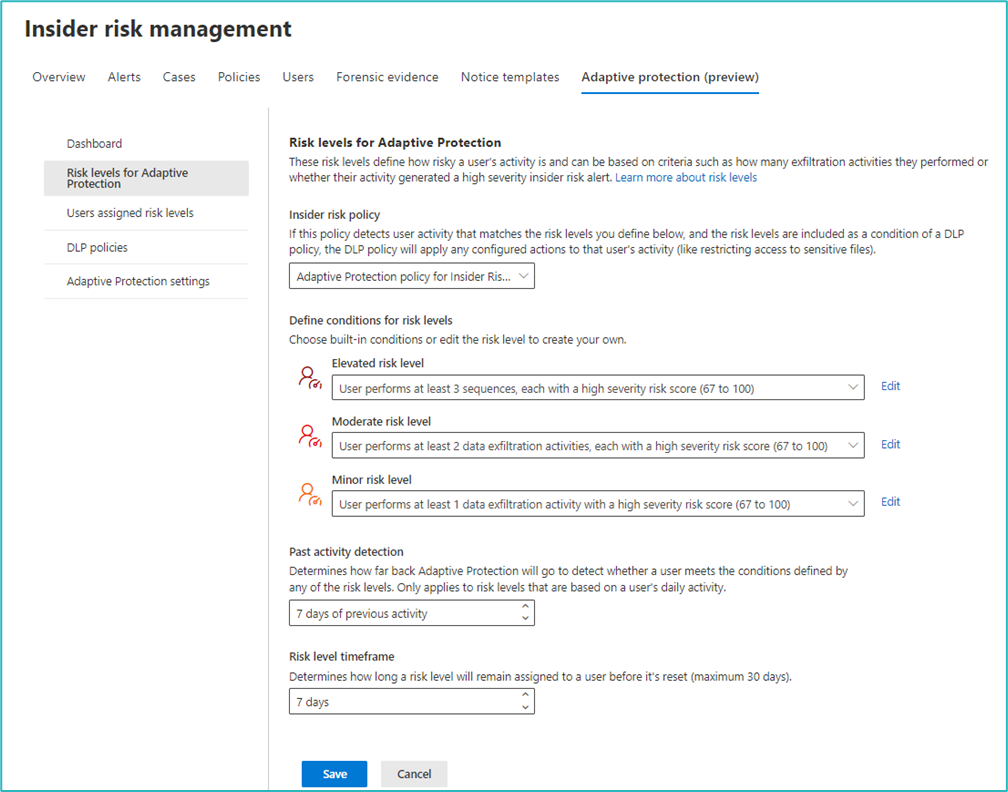
Using AI, the Insider Risk Management component will determine the risk level of the users. And this is based on specific conditions.
If you are new to Insider Risk Management, you can use the Quick Setup to configure the basic configuration for the platform and Adaptive Protection. This setup will create default policy indicators and timelines, a default insider risk policy for adaptive protection (named Data leaks) and default risk levels. If will also create two default Microsoft Purview DLP rules: Adaptive Protection poilicy for Endpoint DLP and Adaptive Protection for Teams and Exchange DLP, both in test mode.
As you can read above, using the quick setup will allow you to get started relatively easily. But let’s take a closer look.
Risk levels
Insider Risk Management evaluates the behavior of specific end users to determine if there is a potential risk to the organization. It does this by using alerts, indicators, signals, and sequences. These are used in so-called Insider Risk policies.
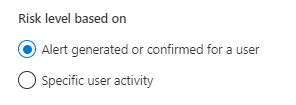
You can set the risk level based on generic alerts generated or confirmed for a user. Or you can specify the user’s activity to be used as a scope.
The list of possible indicators and signals used for generating alerts or the use is vast. To give you an example:
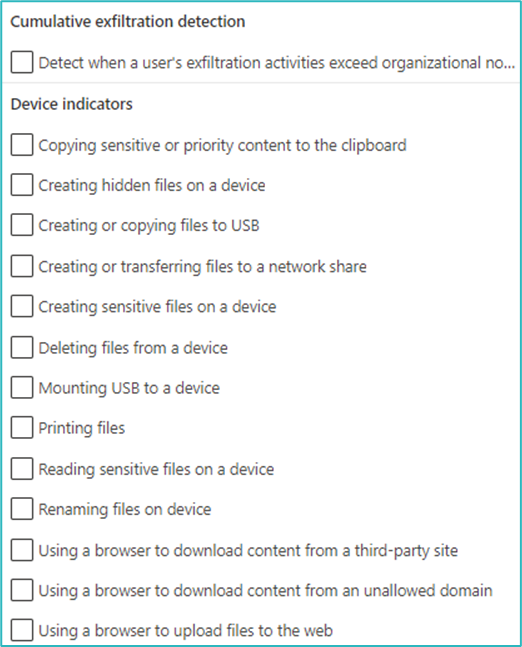
These are the indicators that Defender for Endpoint will detect and send to Insider Risk Management. Note: you will need to onboard these devices to Insider Risk Management first.
A very specific indicator is sequence detection. And this is very impressive. This indicator can detect specific actions that run in sequence and might be linked to risky behavior. Terms used are Archived (using zip for example), obfuscate (renaming files), and exfiltrate (using email or websites). These detections are used for setting the risk level for Adaptive Protection.

Used for DLP
The built-in Adaptive Protection policy for Insider Risk Management (the default for use in DLP) comes pre-configured. The risk level of an end user (Evelated | Moderate | Minor) is determined based on the number of high severity exfiltration sequences (at least three) or high severity activities (two or one).
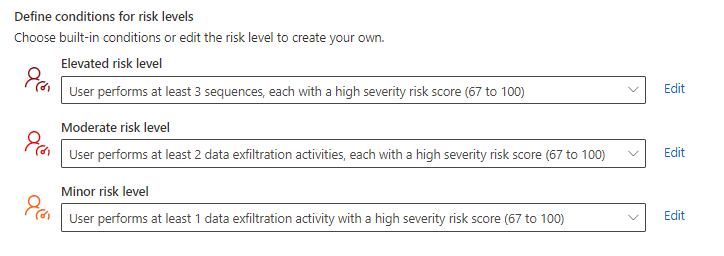
This default policy is set to act on the sequences to Download from Microsoft 365 location then exfiltrate and Detect when a user’s exfiltration exceeds organizational norms. These norms are configured in the policy.
For example, other default polices (Departing employee data theft and Financial inforation theft) use a wider ranger of sequences. Departing employee data theft employs all 14….
If needed, you can modify these risk levels.
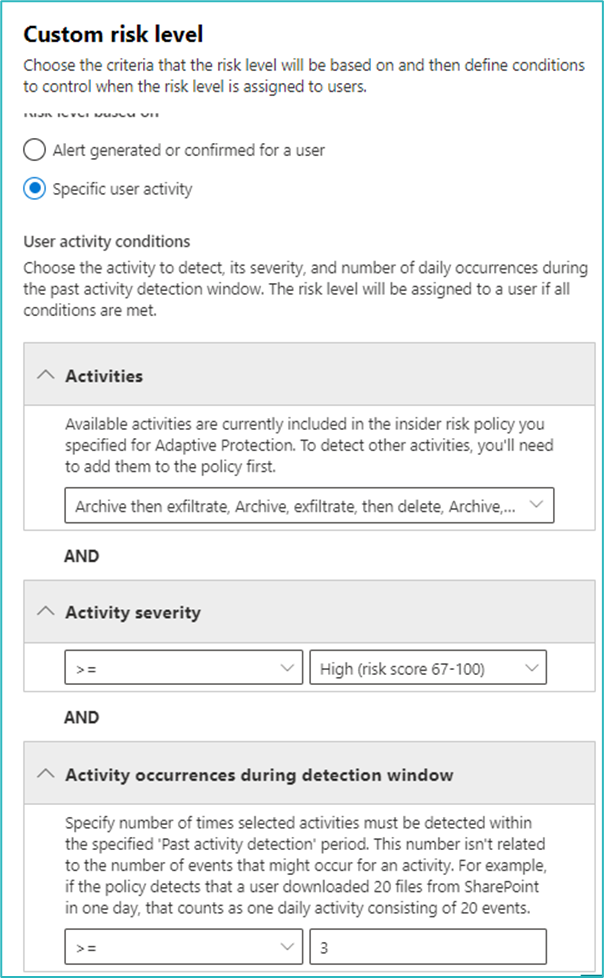
Microsoft Purview DLP rules
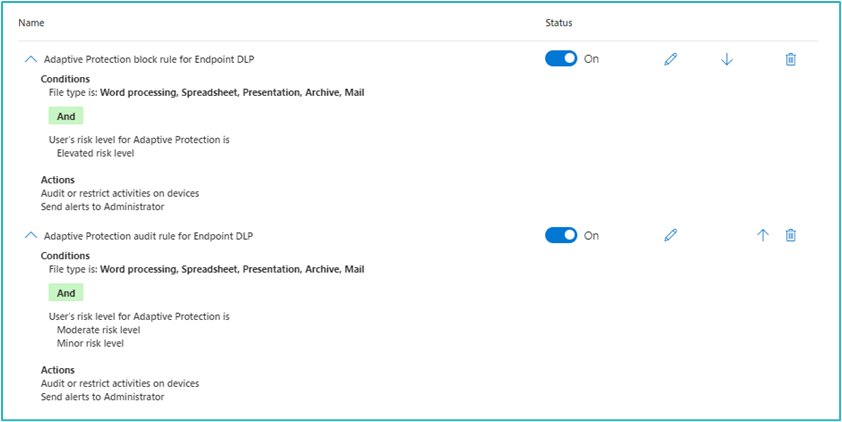
Once you’ve set up the Insider Risk Management policy and risk levels, you can look at Microsoft Purview DLP. You will notice that two new default policies are available if you used the quick setup.

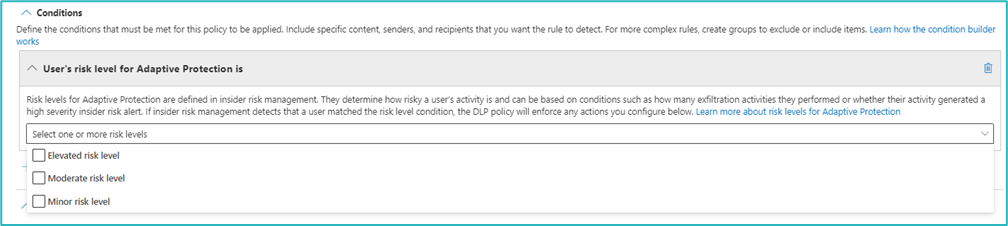
But don’t be fooled 🙂 Only the Endpoint DLP rule is preformatted. The Exchange/Team policy does not have any rules. But not to worry. The condition for user risk can be added to any DLP rule. But please make sure that you only select the platforms it will be able to function: Exchange Online, Microsoft Teams, and Endpoints.
Configuring
The configuration for the DLP rule is not different than the ones with other conditions. Please make sure that you set the condition to “Test” before activating it. But the funny thing is …. You can also do this from Insider Risk Management.

In the DLP policies section, you will see any policies that have been configured to use Adaptive Protection. Any other DLP policy will not be shown here. And you can create your own DLP policy. And because this is initiated from Adaptive Protection, the template will select the proper workload automatically. But as you can see below, you will still have to configure the rule to include user risk.


Do not change the locations, because then the risk-based condition will not be available.
All in all
Take Insider Risk Management seriously! It is a very complicated platform with many dependencies in Azure and Defender. Although Adaptive Protection is currently limited to DLP (and the workloads named above), I do believe that this is to become the way forward (in my opinion), in line with adaptive scopes, administrative units, etc.
 Information security and compliance
One comment